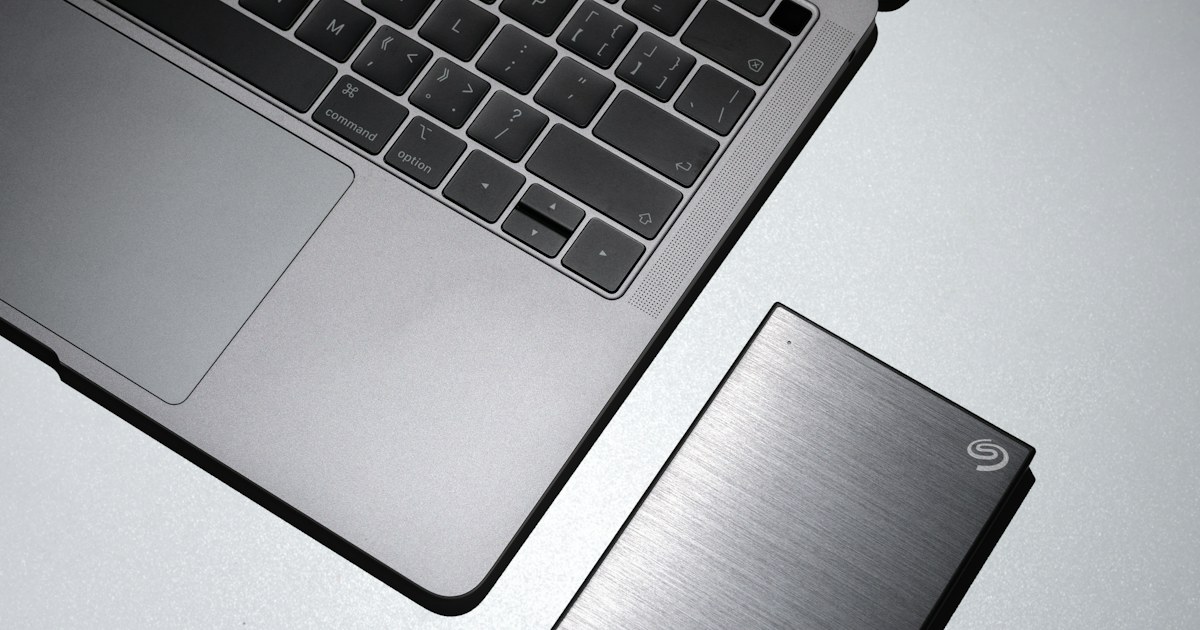
To back up photos, documents or a whole PC, you have three options: a ready-made external hard drive, an external SSD, or an internal drive fitted in a USB enclosure. All three plug in the same way, but they differ in speed, drop resistance and capacity. Here is how to choose, then how to organise the backup so nothing gets lost.
HDD, SSD or a drive in an enclosure: what changes
An HDD (mechanical hard drive) stores data on spinning platters, read by a head that moves over them. It gives the most terabytes for the size. A 2.5 inch external HDD usually reads and writes at around 100 to 140 MB/s.
An SSD stores everything on flash memory chips, with no moving parts. A SATA SSD tops out near 550 MB/s, while an NVMe SSD goes much further, as long as the cable and enclosure keep up.
An internal drive in an enclosure gives the same result as a ready-made external drive, because an external drive is just an internal drive in a shell with a USB controller. The benefit: reuse the drive from an old laptop, pick the capacity yourself, or swap the drive later and keep the enclosure.
| Criterion | 2.5 external HDD | SSD (SATA or NVMe) in an enclosure | 3.5 HDD in an enclosure |
|---|---|---|---|
| Real speed | About 100 to 140 MB/s | Up to 450 MB/s on 5 Gb/s USB, more with NVMe on 10 Gb/s | About 150 to 200 MB/s |
| Power | From the USB cable | From the USB cable | 12 V mains adapter |
| Knocks and drops | Sensitive, especially while running | Holds up well, no moving parts | Sensitive, stays on the desk |
| Typical use | Backup on the move | Frequent transfers, working on files | Large archives at home or in the office |
2.5 or 3.5 inch: two enclosures, two uses
2.5 inch is the size of laptop drives and SATA SSDs. The enclosure fits in a pocket and draws power from the USB port, with no mains plug. Check the supported thickness: most SSDs are 7 mm, many portable HDDs are 9.5 mm. The ORICO 2.5 inch enclosure for 7 and 9.5 mm drives and the hoco 2.5 inch enclosure with UASP and TRIM take both. The full range is in the 2.5 inch drive enclosures category.
3.5 inch is the size of desktop PC drives. They draw more power than a USB port can supply, hence the 12 V adapter that comes with the enclosure. In return they offer the largest capacities. An ORICO 3.5 inch aluminium enclosure, for example, turns a Western Digital 3.5 inch 1 TB internal drive into a fixed backup drive.
For M.2 SSDs, check the type before buying the enclosure. An M.2 NVMe enclosure does not necessarily read M.2 SATA SSDs, which use a different protocol. M.2 SATA SSDs need a SATA enclosure, or one that states support for both.
USB 2.0, 3.0, 3.2: reading the speed on the spec sheet
USB speed is given in gigabits per second (Gb/s), drive speed in megabytes per second (MB/s). One byte is 8 bits, and the USB protocol itself uses part of the bandwidth.
- USB 2.0 (480 Mb/s): about 35 to 40 MB/s in practice. An HDD on this port runs at roughly a third of its speed.
- USB 3.0, also called USB 3.1 Gen 1 or USB 3.2 Gen 1 (5 Gb/s): about 400 to 450 MB/s usable. Plenty for an HDD, nearly enough for a SATA SSD.
- USB 3.2 Gen 2 (10 Gb/s): about 900 to 1000 MB/s. Only useful with an NVMe SSD.
A USB-C connector says nothing about speed: a USB-C cable or port can be USB 2.0. Read the standard on the spec sheet. UASP is a more efficient transfer protocol than the old mode, and brings an SSD closer to its full speed if the PC supports it too.
Capacity: how many TB for a backup
A drive sold as 1 TB holds 1,000 billion bytes. Windows counts in powers of 2 and shows about 931 GB. Nothing is missing, it is just a different unit.
For a full PC backup, plan for at least twice the space used on its drive, because backup software keeps several versions of each file. For photos and documents only, add up your folders and leave room for two or three years. The 1 TB external hard drives cover a typical laptop, while large video libraries call for a 3.5 inch drive in an enclosure.
Drops, knocks and lifespan
Drops are the main cause of data loss on a portable HDD. While it spins, the read head flies very close to the platters, and a knock can make it touch the surface. Wait for the safe eject to finish before unplugging, and do not move an HDD during a copy.
An SSD has no moving parts and copes with knocks far better. Its wear is measured in TBW (terabytes written): the WD Blue SA510 250 GB SSD is rated for 100 TBW, which is 100 TB of writes. With a weekly backup, that limit is far away.
An SSD left unplugged for years is not the best archive medium. Plug your backup drives in regularly and check that the files open.
The 3-2-1 rule
A single external drive is not a safe backup: it can be dropped, stolen, or fail on the same day as the PC. The 3-2-1 rule covers these cases:
- 3 copies of the data: the original and two backups.
- 2 different media, for example the PC drive and an external drive, or an HDD and an SSD.
- 1 copy off-site, at a relative’s place, at the office or in cloud storage, so a fire or burglary cannot take every copy.
To follow the rule without buying much, two internal drives and a MAIWO two-bay docking station let you keep one drive at home and the other elsewhere, swapping them from time to time.
Formatting for Windows and Mac: exFAT or NTFS
- NTFS: the Windows format. macOS reads it but cannot write to it without extra software.
- exFAT: read and written by both Windows and macOS. The right choice for a drive shared between the two.
- FAT32: works everywhere, but refuses files larger than 4 GB. Avoid it for videos and disk images.
- APFS: the macOS format, required by Time Machine on recent versions. Windows cannot read it.
Formatting erases the whole drive. On Windows it is done in Disk Management, on a Mac in Disk Utility. A new drive often ships as NTFS or exFAT, so check before copying your files.
Our advice
- Laptop backup you carry around: a 1 TB 2.5 inch external HDD such as the Seagate Expansion 1 TB or the Toshiba Canvio Basics 1 TB, kept in a pouch.
- Frequent transfers or a drive that travels a lot: a 2.5 inch SATA SSD in a USB 3.0 enclosure with UASP, faster and less fragile.
- Old laptop drive: a 2.5 inch enclosure is enough to turn it into a backup drive. Check its health before trusting it with your files.
- Large archives at home: a 3.5 inch drive from the internal hard drives category in a powered enclosure, with a second copy elsewhere.
- Drive shared between Windows and Mac: format it as exFAT the first time you plug it in.


