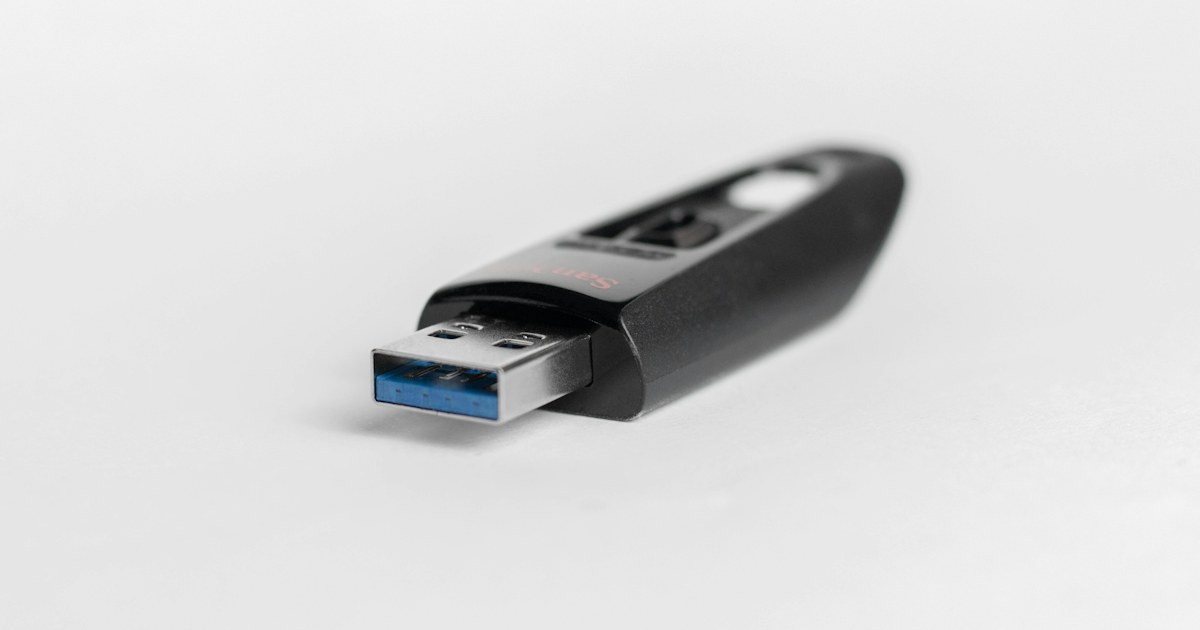
Two 64 GB USB flash drives can copy the same folder in two minutes and in twenty. Once plugged in, the drive shows less than 64 GB, refuses a 6 GB film or is ignored by the car radio. All of this is on the label if you know what to look for: the USB standard, the write speed, the connector and the file system.
USB 2.0, 3.0, 3.1, 3.2: many names, few speeds
The names changed several times for the same speeds. A drive sold as USB 3.0, USB 3.1 Gen 1 or USB 3.2 Gen 1 has exactly the same interface, rated at 5 Gbit/s.
| Name on the pack | Other names | Interface rate |
|---|---|---|
| USB 2.0 | Hi-Speed | 480 Mbit/s, or 60 MB/s |
| USB 3.2 Gen 1 | USB 3.0, USB 3.1 Gen 1 | 5 Gbit/s |
| USB 3.2 Gen 2 | USB 3.1 Gen 2 | 10 Gbit/s |
| USB 3.2 Gen 2x2 | none | 20 Gbit/s |
The interface rate is a ceiling, not the speed of the drive. The memory inside sets the pace. A USB 2.0 drive never goes past 60 MB/s and in practice stays well below. An entry-level USB 3.2 Gen 1 drive reads at around 100 to 150 MB/s, far from 5 Gbit/s.
Compatibility works both ways. A USB 3.2 drive works in a USB 2.0 port, at USB 2.0 speed. On a PC, USB 3 ports often have a blue tab inside, though this is not a fixed rule.
Read and write: the big number is the read speed
The up to 150 MB/s printed on the pack is a read speed. That is the case for the SanDisk Ultra Flair 128 GB, rated up to 150 MB/s read, or the Kingston DataTraveler 50 in 64 GB, up to 110 MB/s.
The write speed, copying to the drive, is often missing from the spec sheet. On entry-level drives it is clearly lower than the read speed. If you often copy large folders to the drive, that is the figure that matters, and a USB 3.2 drive is still much faster than a USB 2.0 one on this point.
Two more things affect real speed:
- Thousands of small files, such as photos and documents, copy much more slowly than one large file of the same total size.
- The port: plugged into a USB 2.0 port or a hub, a fast drive drops to USB 2.0 level.
To carry a few Word or PDF files, a USB 2.0 drive like the Kioxia TransMemory U202 32 GB is enough. For videos, backups or installation files, take a USB 3.2 Gen 1 drive.
Why a 64 GB drive shows less
The maker counts in base 10: 1 GB = 1,000,000,000 bytes. Windows counts in base 2: one GB on screen is 1,073,741,824 bytes. A drive of 64 billion bytes therefore shows 59.6 GB at most, then a little less after formatting, which reserves room for the file table.
Roughly what Windows shows:
- 32 GB: about 29 GB
- 64 GB: about 58 to 59 GB
- 128 GB: about 115 to 119 GB
- 256 GB: about 230 to 238 GB
A much larger gap calls for a test.
Fake high-capacity drives
A fake drive claims 1 or 2 TB and shows that capacity in the file explorer, but holds only 8 or 16 GB of real memory. Once that memory is full, new files overwrite old ones or become unreadable.
To check a new drive, run a full write test: H2testw on Windows or F3 on Linux and macOS fill the drive and then read back every byte. Do it before you put any data on it. Warning signs: a very high capacity with no known brand, a misspelled maker name, a pack with no model reference. Memory cards have the same problem, see our guide to microSD speed classes.
USB-A, Type-C or dual drive
The USB-A connector is the large rectangular port on desktop PCs, TVs and car radios. Most drives are still USB-A, like most of our USB flash drives.
Type-C is the small reversible port on recent Android phones, iPhones with a USB-C port and many thin laptops. A dual drive, like the SanDisk Ultra Dual Drive Go Type C 32 GB, has both a USB-A and a Type-C connector. It lets you offload photos from a phone and plug them into a PC with no cable. The phone must support OTG, which most recent Android phones do. The models we carry are grouped under USB Type C flash drives.
The shape matters too. A nano drive like the SanDisk Ultra Fit 64 GB barely sticks out of the port, so it can stay plugged into a laptop, a TV or a car radio. A cap protects the connector in a pocket, a capless metal body means nothing to lose.
FAT32, exFAT, NTFS: the file system decides what fits
- FAT32: read by almost everything, including older TVs and car radios. Limit: a single file cannot exceed 4 GB. A 6 GB film is refused with a disk full message while the drive is nearly empty.
- exFAT: no practical file size limit, read and written by recent Windows and macOS. The right choice for a drive that moves between a PC and a Mac with large files.
- NTFS: the Windows format. macOS reads it but cannot write to it without extra software.
To see the current format, right-click the drive in the file explorer, then Properties. To change it, right-click, then Format. Formatting erases everything, so copy your files elsewhere first.
On a TV or a car radio
These devices have their own limits, and they are written in the manual under USB or multimedia.
- File system: many car radios only read FAT32. Some TVs read exFAT or NTFS, others do not.
- Maximum capacity: some car radios refuse drives above 32 GB. A 32 GB USB flash drive in FAT32 avoids the issue.
- Speed: playing music or a film needs little bandwidth, and the ports on these devices are often USB 2.0. A USB 3.2 drive does not play any faster there, it mostly fills up faster on the PC.
- Recording: a TV that records programmes to a drive reformats it in its own format. Back up its content first.
Our advice by use
- Documents, school work, printing at a copy shop: 32 GB is enough, USB 2.0 or 3.2. The Kioxia U202 with its cap does the job.
- Everyday use, phone photos and videos: a 64 GB USB flash drive in USB 3.2 Gen 1, for example the Kingston DataTraveler Exodia 64 GB.
- Backups, films, installation files: 128 or 256 GB in USB 3.2 Gen 1, formatted in exFAT, like the Kingston DataTraveler Exodia M 256 GB.
- Phone to PC: a dual USB-A and Type-C drive, after checking that the phone supports OTG.
- Car or TV: a nano drive that stays plugged in, in FAT32, 32 or 64 GB depending on the device limit.
A USB flash drive is not an archive. Keep a second copy of anything that matters on another medium.


