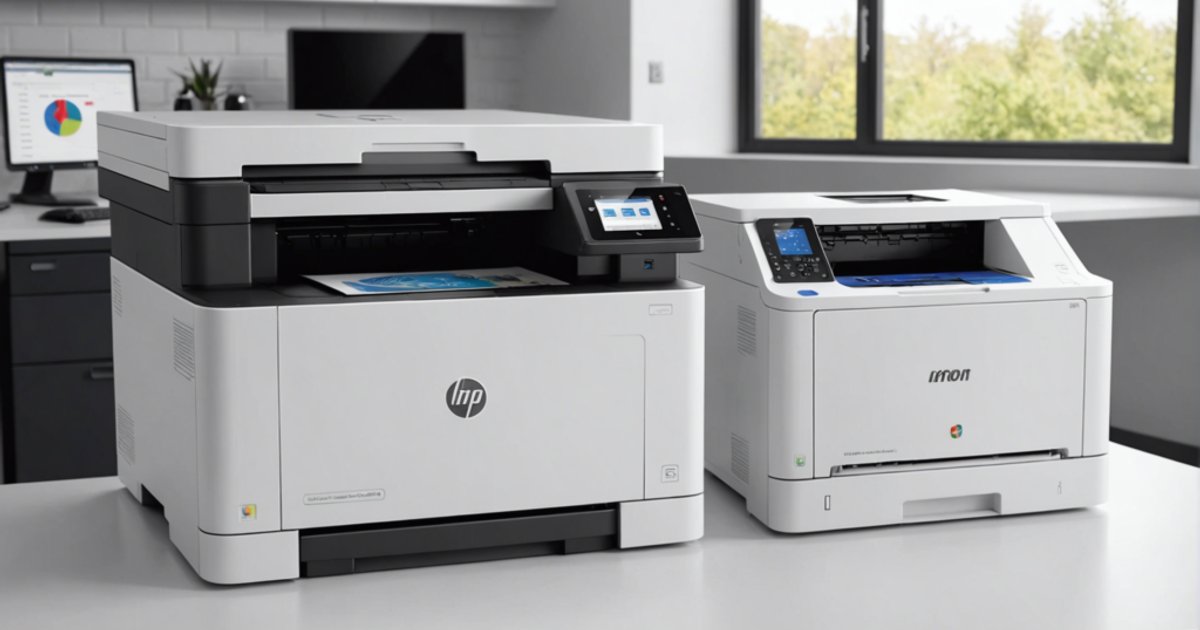
A well-treated laser printer lasts for years. What wears one out early is rarely a dramatic failure. It is the wrong toner, damp paper, dust and a print volume the model was never built for. Here is what matters, part by part.
Toner and drum are two different consumables
Toner is a powder. The drum (also called the imaging unit) is a light-sensitive cylinder: the laser draws the page on it, then the drum transfers the powder to the paper. It wears a little with every page.
Depending on the brand and model, the two come together or apart:
- All-in-one cartridge: the drum is built into the toner cartridge, so every toner change also replaces the drum. Many HP cartridges work this way.
- Separate drum: you change the toner several times before the drum. With Brother, the TN-2420 toner is rated at about 3,000 pages and the DR-2400 drum at about 12,000. The HP Laser 107a uses the HP 106A toner together with the HP 104A drum.
Your printer’s manual tells you which system it uses. Replacement parts are listed under laser toners and printer drums.
Which part is causing the problem
- Faint print or a white vertical band: toner nearly empty. Rocking the cartridge gently from side to side often gets you through the current job.
- A dot or line repeating at regular intervals: usually the drum (scratch or stain) or a roller. The gap between marks matches the circumference of the faulty part.
- Grey background over the whole page: drum at the end of its life, or poor toner.
- Text that smudges when you rub it: a fusing problem or the wrong paper type in the driver, not a toner problem.
If the printer keeps a drum counter, reset it after fitting a new drum as the manufacturer describes, otherwise the warning stays on screen.
Original or compatible toner
A compatible toner does not harm a printer by itself. The risk comes from badly made cartridges: the wrong powder, a poorly set metering blade, leaks. Escaping toner dirties the drum, the fuser and the rollers.
| Point | Original toner | Compatible toner |
|---|---|---|
| Recognised by the printer | Always | Depends on the chip, a firmware update can reject it |
| Cost per page | Higher | Lower |
| Consistency | Same from batch to batch | Varies with the maker |
| Page yield | Measured to the ISO standard | Stated by the maker, check it in use |
| Check before buying | The exact part number | The exact part number, the brand, the list of supported models |
Black toner yield is measured at roughly 5% page coverage (ISO/IEC 19752). Dense tables, logos or solid areas use far more, so the cartridge will print fewer pages than rated.
Before you buy, match the part number printed on your current cartridge (W1106A, CF230A, TN-2420 and so on) with the one on the product page, not just the printer name. The compatible HP toners in stock list the models they fit.
Firmware: update, but with care
Updates fix bugs and network security holes. Some, notably from HP, have also blocked chipped cartridges that were not original. If you use compatibles:
- read the release notes before installing,
- turn off automatic updates if the menu allows it, and update by hand,
- keep a spare original cartridge if the printer is critical to your work.
Use the manufacturer’s driver rather than a generic one. The fuser sets its temperature from the paper type you select.
Paper causes most jams
- Standard 80 g/m² paper works in every laser printer. For heavier stock, check the maximum weight and pick the matching type in the driver.
- Never use photo paper, labels or transparencies made for inkjet printers. They can melt or peel inside the fuser.
- Keep reams in their wrapper, flat, somewhere dry. Paper that has absorbed moisture curls and jams.
- Cheap paper sheds dust onto the rollers, which then slip and pick several sheets at once.
To clear a jam, pull the sheet in the direction the paper travels, with both hands and no metal tools. The fuser stays hot after printing.
Dust, heat and power
Dust clogs rollers and sensors. Put the printer on a desk or cabinet rather than the floor, away from a window facing the street, with a few centimetres free around the vents. Cover it if it sits unused for days.
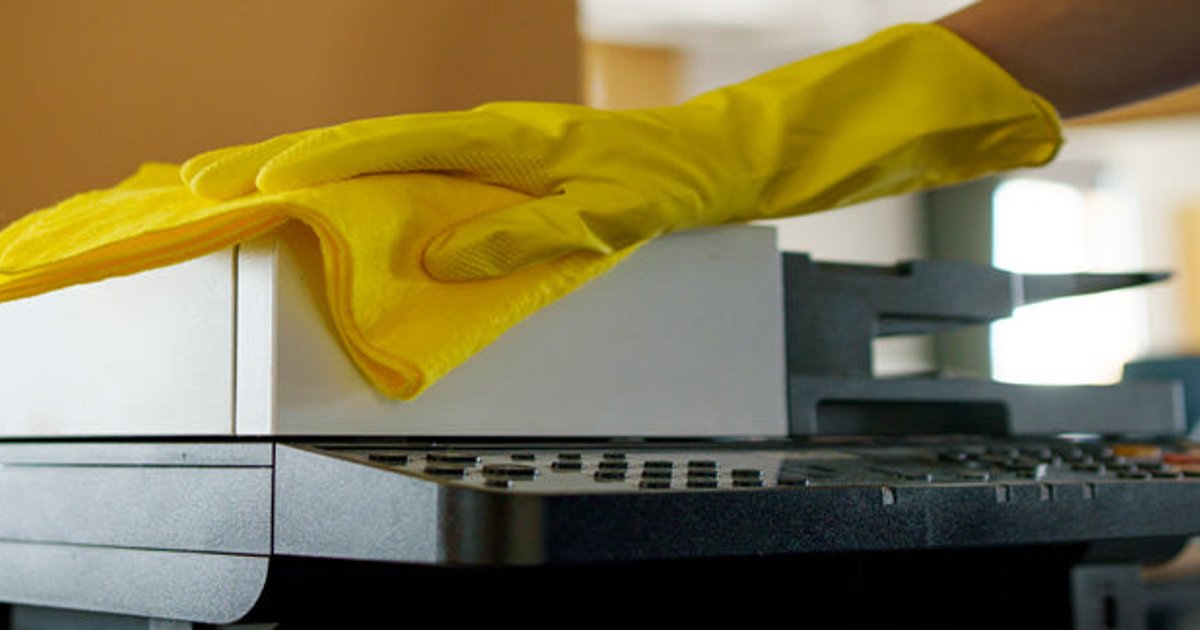
For cleaning, with the printer off and unplugged:
- the outside and scanner glass with a dry or barely damp cloth,
- the inside with a dry lint-free cloth, each time you change the toner,
- the feed rollers with a slightly damp cloth if jams keep coming back,
- no household vacuum or compressed air inside: toner is fine enough to pass through an ordinary filter, and air spreads it everywhere.
Let sleep mode do its job instead of switching off after every page, since each power-on restarts the warm-up and calibration. Switch it off at night and during storms. Avoid small UPS units: the fuser draws a high current while heating and can trip a unit sized for a computer. Our guide to sizing a UPS covers the rest of the desk.
Print volume: the right figure to read
Spec sheets often give two values:
- Maximum monthly duty cycle: an occasional peak, not a working pace.
- Recommended monthly volume: the range the machine is designed for. Compare this one with your real use.
The page counter is on the configuration report. Above the recommended volume, everything wears faster. An office machine such as the HP LaserJet Pro 4003dn (automatic duplex, 350 sheets, Ethernet) is built for much higher volumes than a personal model. Compare the monochrome laser printers on this point. Our guide to choosing an office laser printer covers the other criteria.
Storing toner and drums
- Keep new consumables in their sealed bag, flat, away from heat and sunlight.
- The drum is sensitive to light. Do not leave it uncovered outside the printer for more than a few minutes, and never touch its surface.
- Avoid a car in summer or a room under a metal roof: heat makes the powder clump.
Other wear parts
The fuser, the paper pick-up rollers and the transfer unit also wear. On business models they come as a maintenance kit. On small models they are often not sold as consumables, and replacing them can cost more than the printer.
Mistakes that shorten a laser printer’s life
- Buying toner by printer name alone without checking the part number.
- Shaking a cartridge upright or hard.
- Carrying on printing with a leaking cartridge.
- Running a personal model at the pace of a whole office.
To replace a machine or equip a new desk, the laser printers section lists the models in stock.